Plugins
Tattva inside the tools you already use. Both are free and open, and use the same parts, colours and rules as the code.
For people building with AI
Claude Code
Claude looks up the real Tattva parts instead of guessing, builds with them, and checks its own code against the rules.
Add the plugin
Inside Claude Code, type these two lines, one at a time:
Claude Code plugin commands/plugin marketplace add LKB00/tattva /plugin install tattva@tattvaRestart Claude Code and try it
Type/tattva:buildand say what you want, for example "a chat assistant for my bank." It asks a few quick questions, one at a time; say "defaults" to skip them.
Using Cursor or Claude Desktop? Connect an AI tool has the steps.
What it adds
- /tattva:build
- Build a screen with Tattva parts, from a plain description
- /tattva:find
- Find the part for a need, with its props and an example
- /tattva:review
- Check code against Tattva's rules and fix what it finds
- /tattva:theme
- Switch or explain the colour themes, corners and dark mode
- Tattva server and skill
- Connects the Tattva MCP server and tells Claude when and how to use it
For designers
Figma
Design with the same parts, colours and sizes the code uses, then check your design before handing it over.
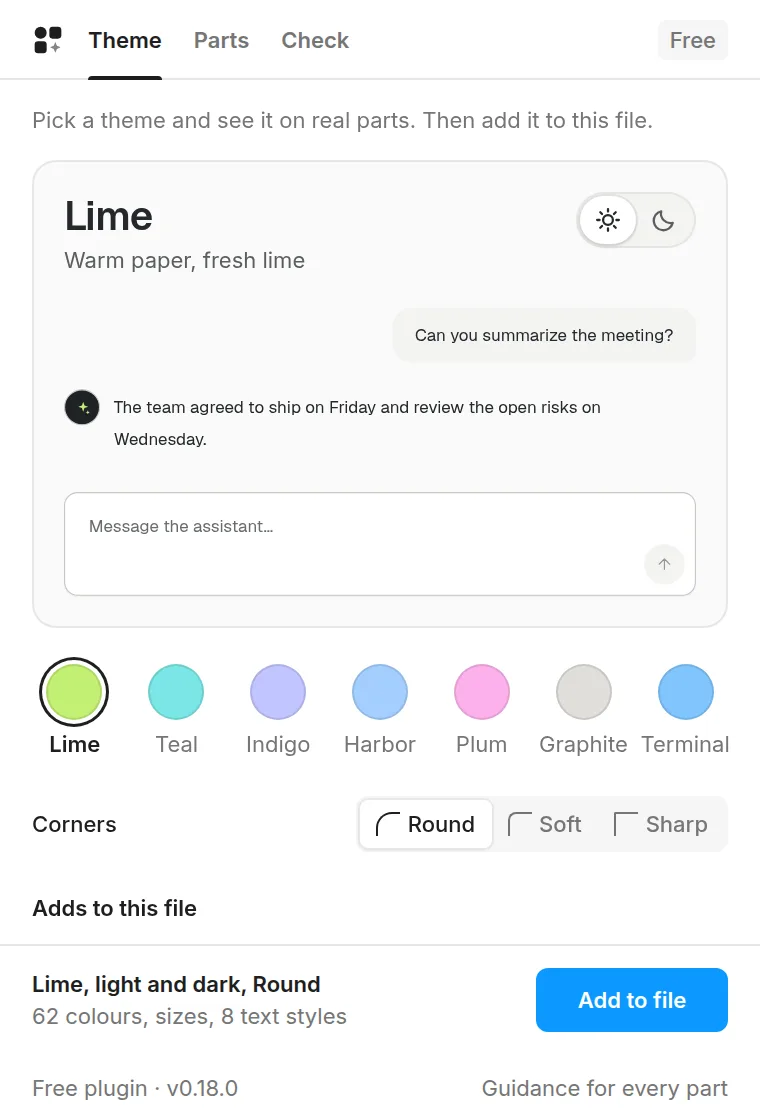
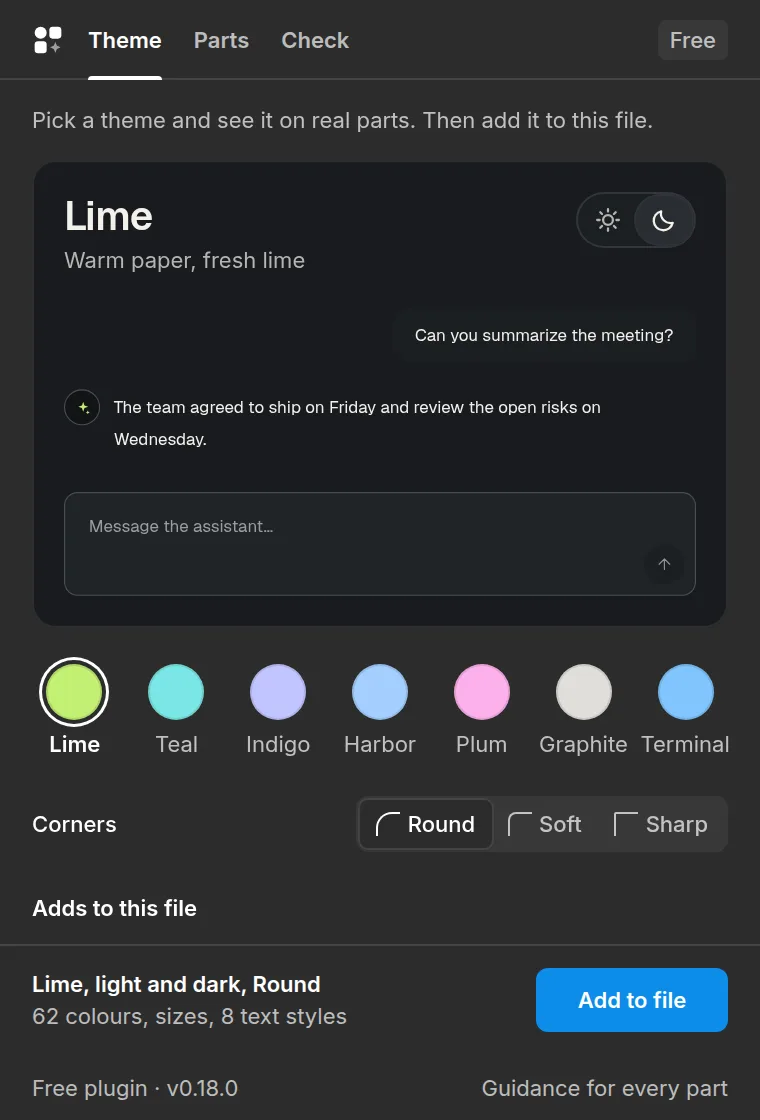
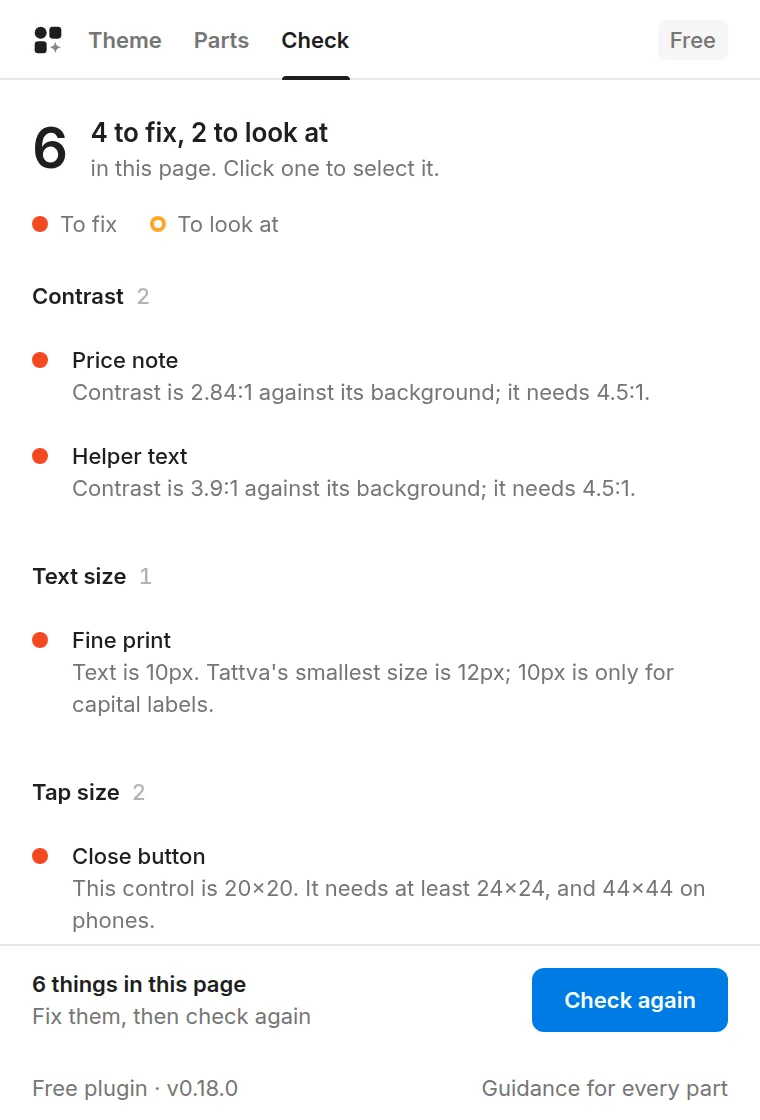
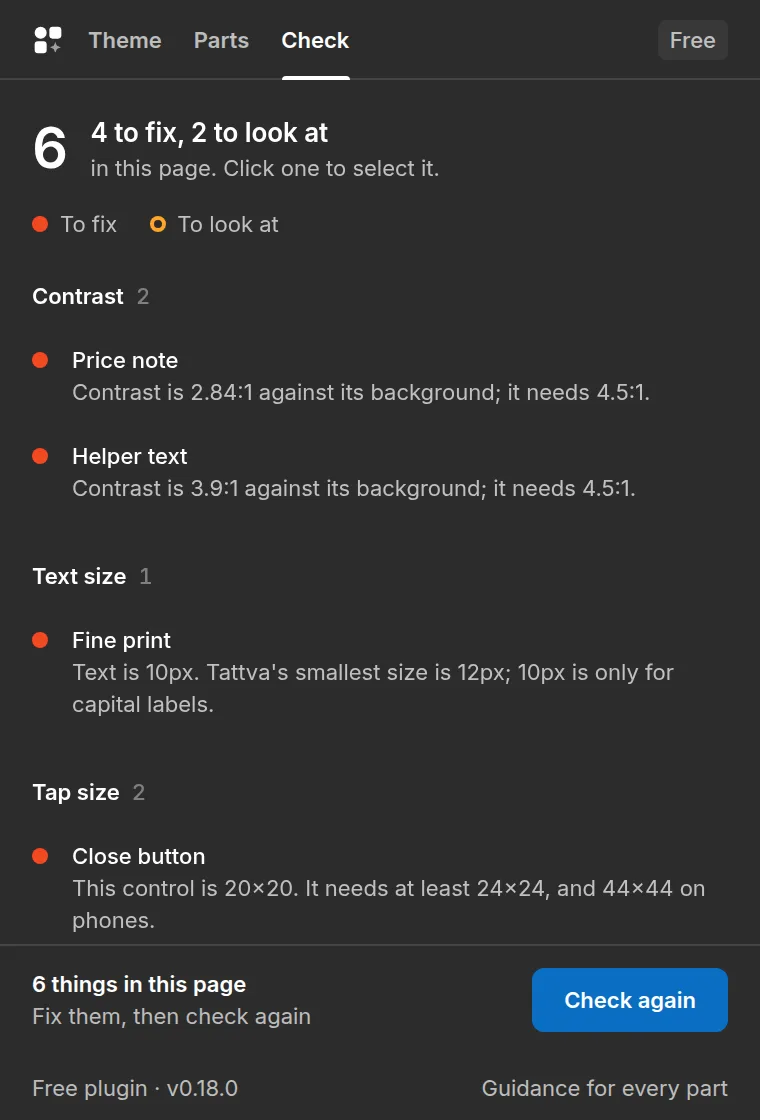
- Theme: see real parts in any of the 7 themes, light or dark, with Round, Soft or Sharp corners, then add it: colour variables with Light and Dark modes, corners, spacing, type sizes and text styles. Run it again with another theme and the same variables update.
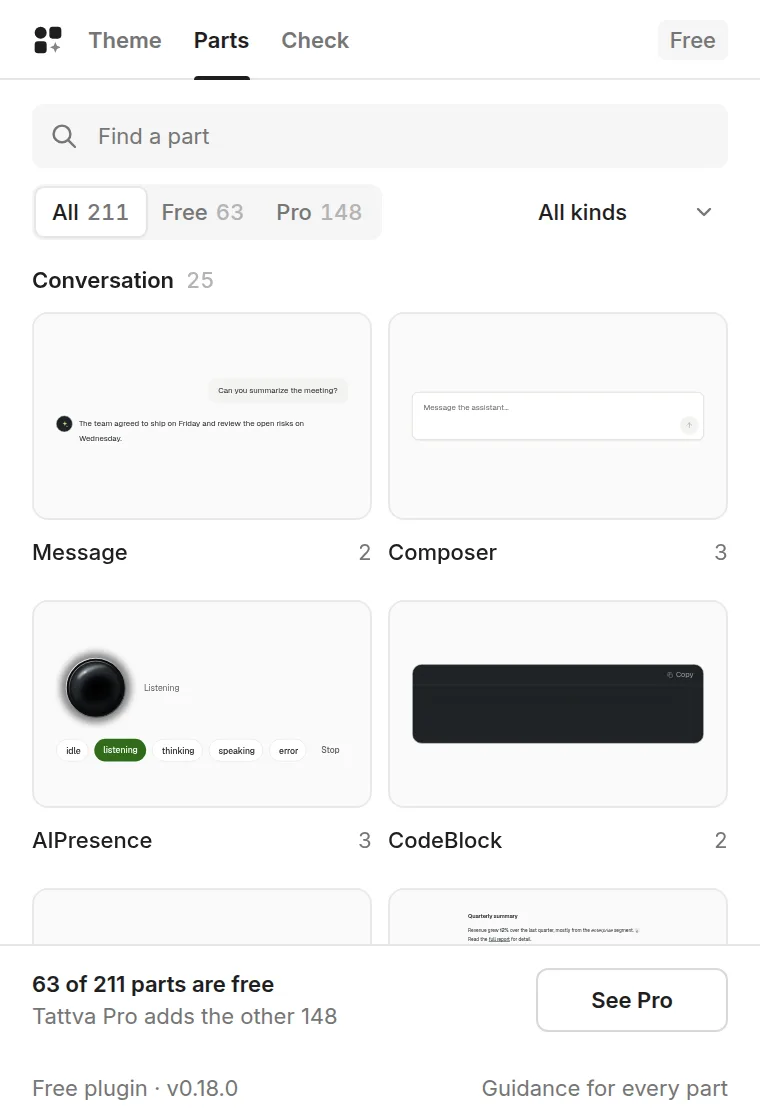
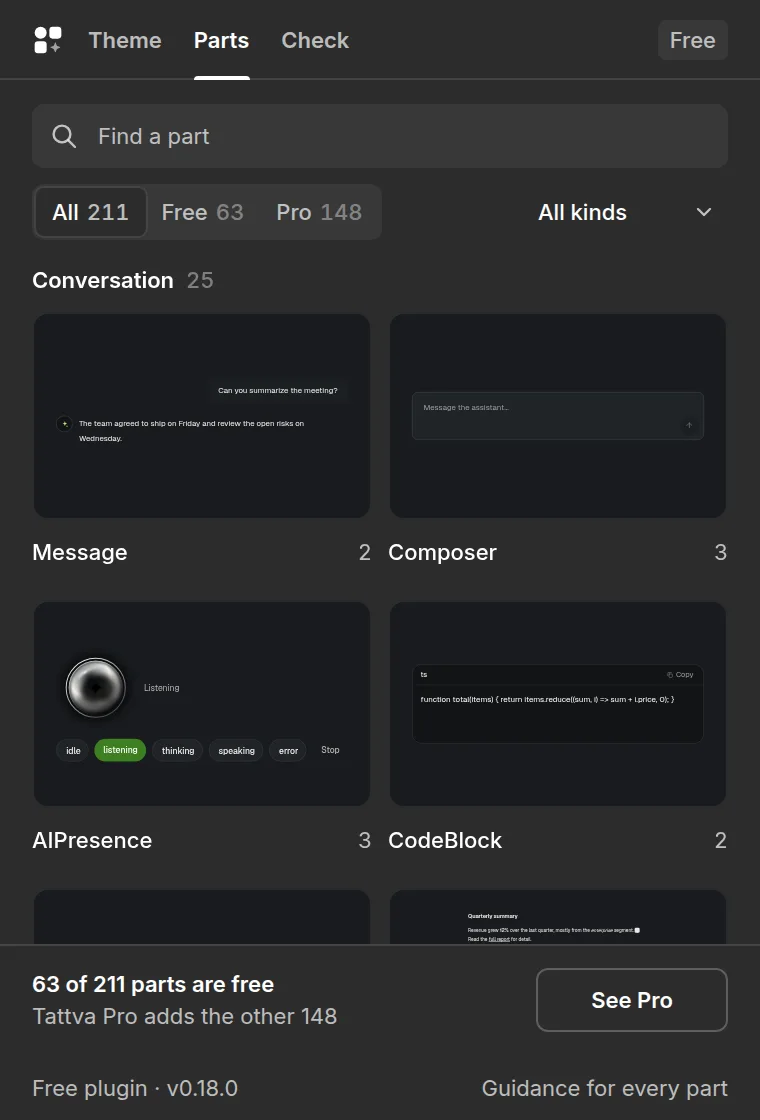
- Parts: all 228 parts as Figma components, with each documented example as a variant (Button has Variant and Size). Spacing uses auto layout where it matches the code, and every colour and corner is linked to the Tattva variables, so the theme, Light or Dark and the corners carry over.
- Check: finds low contrast, text that is too small, the AI colour used as text, tap targets that are too small and colours that are not Tattva's. Click one to jump to the layer.
On Figma Community: choose Open in, pick a file, and it runs. Updates arrive on their own. The file is for working offline: unzip it, then in the Figma desktop app choose Plugins, Development, Import plugin from manifest. The parts are copies of how each one looks: hover states and animations are not included.